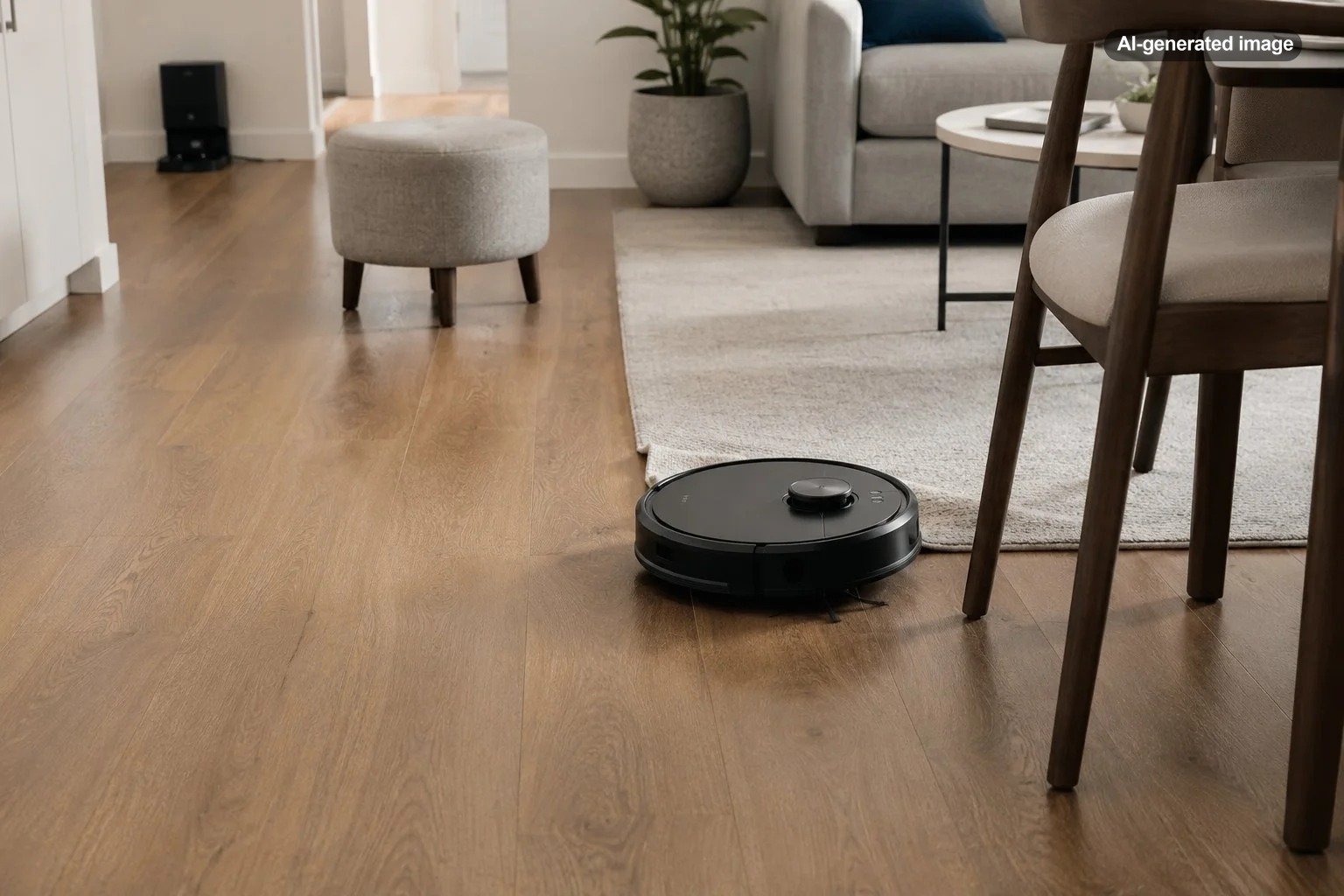
Why Is My Robot Vacuum Suddenly Getting Lost?
A robot vacuum that suddenly seems lost is usually reacting to a change in what it can see, sense, or remember. Dusty navigation sensors, a shifted charging dock, slipping wheels, a corrupted map, poor lighting, or a newly rearranged room can all make an appliance that once moved confidently begin circling, repeating areas, or wandering past its dock.
Start with the simple physical checks before deleting maps or performing a factory reset. In many cases, a careful sensor cleaning and a clear route to the dock are enough to restore normal navigation.
First, define what getting lost looks like
Different behaviors point to different causes. A vacuum that spins repeatedly may have a dirty sensor, a jammed wheel, or uneven traction. One that cleans the same room over and over may be struggling to recognize its position on the saved map. A unit that cleans normally but cannot return home is more likely dealing with dock placement, a blocked signal, or an interrupted route.
Watch one cleaning cycle for a few minutes and note where the behavior begins. Does it become confused near a dark rug, mirrored closet door, sunny window, threshold, or particular piece of furniture? Does the problem happen everywhere, or only in one room? That distinction can prevent an unnecessary reset.
| Behavior | Likely areas to check |
|---|---|
| Spins, pivots, or backs up repeatedly | Cliff sensors, bumper, wheels, tangled hair, dark flooring |
| Drives in crooked or irregular paths | Wheel traction, debris, uneven flooring, shifted obstacles |
| Repeats rooms or misses large areas | Saved map, navigation sensor, lighting, closed doors |
| Cannot find the dock | Dock location, blocked approach, dirty signal areas, manual relocation |
| Map appears rotated or distorted | Moved dock, interrupted mapping run, incorrect floor map |
Clean the navigation sensors carefully
Sensor contamination is one of the most common reasons a robot vacuum starts behaving differently. Fine dust can coat optical windows gradually, so the decline may seem sudden even though the buildup was not.
Turn the vacuum off and consult its manual to identify the relevant components. Depending on the design, these may include cliff sensors underneath, a wall-following sensor, a front-facing obstacle sensor, camera lenses, a laser navigation turret, and charging or signal contacts. Wipe exposed sensor windows gently with a clean, soft cloth. Avoid spraying cleaner directly onto the appliance or using a chemical the manufacturer does not approve.
Do not forget the dock. Dust on its signal window, charging contacts, or surrounding floor can interfere with the final approach. Clean only as directed for your model.
Check the wheels, brush, and bumper
A robot vacuum calculates its position partly from how its wheels move. If one wheel drags or slips, the machine may believe it traveled farther, shorter, or in a different direction than it actually did.
Look for hair wrapped around the drive wheels, front caster, axles, and main brush. Press each accessible drive wheel gently to confirm that it moves and springs back similarly to the other side. Check that the front bumper can move freely and is not held inward by grit or a small object.
Also inspect the tires for residue. Fine dust, cooking grease, or cleaning-product film can reduce traction on hard floors. Follow the manual when cleaning wheels, and do not flood openings with water.
Restore a clear approach to the charging dock
The dock should remain in a stable location with an open route in front of it. Exact clearance requirements vary by manufacturer and model, so use your manual rather than a universal measurement. As a practical rule, avoid squeezing the dock between furniture, hiding it behind a door, or placing baskets, cords, shoes, or reflective objects in its approach path.
If the dock was moved, even by a modest distance, the saved map may no longer align with the robot’s expected starting point. Return it to its previous position when possible. Then place the vacuum on the dock and begin the next cycle from there instead of carrying it into another room.
Manually moving the vacuum during a cleaning run can also disrupt location tracking. If it becomes trapped, pause it and free it with as little relocation as possible. Some models can recover their position; others may need to restart from the dock.
Look for changes in the room
Robot vacuums build their routes around walls, furniture, doorways, and other recognizable features. A major furniture rearrangement, a newly closed door, a folded room divider, or a large pile of boxes can make a saved map less reliable.
Smaller changes can matter as well. Floor-length curtains may be read as a boundary one day and pushed aside the next. Mirrors and highly reflective surfaces can confuse some optical or laser-based systems. Direct sunlight, deep shadows, and dim rooms may affect camera-guided models. Loose cables, lightweight mats, and fringe can redirect the machine or cause wheel slip.
Inspect the map before resetting it
Open the companion app, when available, and compare the saved map with the current floor plan. Look for overlapping rooms, a rotated layout, a dock shown in the wrong location, an incorrect floor selected in a multilevel home, or virtual boundaries that no longer match the furniture.
Confirm that map saving is enabled if your model requires that setting. Review no-go zones and virtual walls, especially if the vacuum turns away from an apparently open area. An accidentally shifted boundary can look like a navigation failure.
If the map is clearly distorted, use the app’s map recovery, backup, or restore feature when one exists. Rebuilding the map should come after cleaning the sensors and correcting the dock location. Otherwise, the same physical problem may spoil the new map too.
What to do
- Charge the vacuum and place it on its dock.
- Clean the sensors, wheels, bumper, and dock as directed by the manufacturer.
- Open doors to every room that should be mapped.
- Remove cords, lightweight clutter, and temporary obstacles.
- Use consistent lighting for camera-guided models.
- Start a complete mapping or cleaning run from the dock.
- Allow the robot to return to the dock by itself without moving it manually.
Check for software and connection problems
A temporary app, Wi-Fi, firmware, or synchronization problem can make a correct map appear missing or prevent new instructions from reaching the vacuum. Close and reopen the app, confirm that the vacuum is online, and restart the vacuum using the procedure in its manual.
Check for firmware updates through the official app, but avoid interrupting an update or removing power while it is in progress. If the problem began immediately after an update, review the manufacturer’s support notices or contact support rather than repeatedly resetting the machine.
A factory reset should be a later step because it may erase maps, schedules, room labels, cleaning history, and smart-home connections. Record important settings first and follow the instructions for the exact model.
When the problem may need service
Stop troubleshooting and contact the manufacturer or a qualified repair provider if the laser turret does not rotate normally, a wheel remains stuck after accessible debris is removed, the bumper stays jammed, the vacuum reports a persistent sensor or navigation error, or the unit has been dropped or exposed to liquid.
If all components appear clean and the vacuum still loses its position on every run, the issue may involve a failed sensor, wheel encoder, motor, navigation module, or main control system. Providing support with the model number, error message, app screenshot, and a brief video of the behavior can make diagnosis easier.
How to prevent future navigation problems
Keep the dock in one permanent location and begin routine cleaning cycles from it. Clear cords and small objects before scheduled runs, especially in changing areas such as entryways and children’s rooms. Clean sensor windows and remove hair from moving parts at the interval recommended for your model.
After a major furniture rearrangement, inspect the app map and remap only when needed. In a multilevel home, confirm that the correct saved floor is active before starting. Most importantly, avoid carrying the robot to a random starting point when you expect it to use a detailed saved map.
A lost robot vacuum is rarely having an existential crisis. It is usually working with dirty sensors, poor traction, a mismatched map, or a home base that is no longer where it expects. Troubleshooting those elements in order is faster and less disruptive than immediately erasing every setting.
Frequently asked questions
Why is my robot vacuum suddenly going in circles?
Circling often points to a dirty cliff or obstacle sensor, a jammed bumper, or unequal movement between the drive wheels. Clean and inspect those parts before resetting the map.
Why does my robot vacuum keep cleaning the same room?
It may be unable to confirm its location, blocked from another room, using the wrong saved map, or responding to a virtual boundary. Check the app map, doors, lighting, and navigation sensors.
Should I delete the map and start over?
Delete or rebuild the map when it is visibly distorted or no longer matches the home, but only after cleaning the vacuum and confirming that the dock is correctly placed. Otherwise, the new map may develop the same problem.
Can moving the charging dock confuse a robot vacuum?
Yes. Many mapping vacuums use the dock as a reference point. Moving it can make a saved map and the physical room stop matching, particularly when the next run begins from the new location.
Can darkness affect a robot vacuum?
It can affect models that rely heavily on cameras or optical features. Laser-guided models may be less dependent on room light, although reflections, dark surfaces, sensor dirt, and obstacles can still disrupt navigation.